
Upload Items to the Item Reference

To upload your updated items spreadsheet into Lingo, please click the Administration tab, and then click Item/Carton Maintenance.
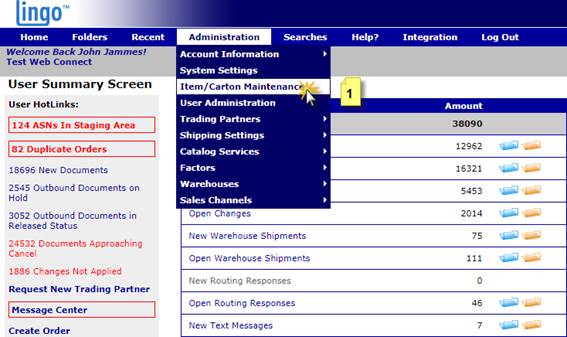
Lingo software user interface displaying the Administration tab with Item/Carton Maintenance option highlighted, guiding users on uploading items to inventory.

On the left, click “Upload Retailer Items”.
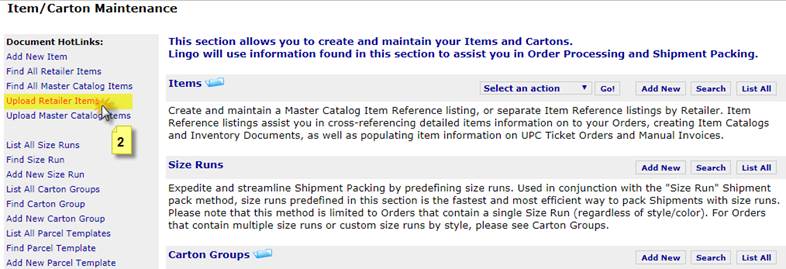
Item/Catalog Maintenance interface with highlighted "Upload Retailer Items" option, guiding users on managing inventory in eZCom Lingo software.

You will come to a page where you will be able to browse and attach your file. Be sure to check the “check here” box (as the file you have attached does contain column headers). Click Submit.
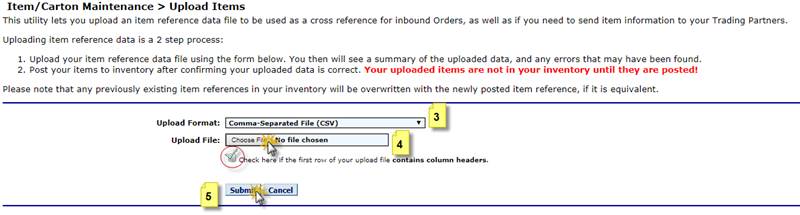
Upload Items interface in eZCom Lingo software, showing fields for CSV file selection and options for confirming column headers, with a highlighted "Submit" button for uploading inventory data.

You will then be taken to a page where you will see all your items to be uploaded. You want to “Select All” from the top right, then go to the bottom of the page and click “Go!” to “Post Selected Items to Inventory”.

Item maintenance interface in Lingo software displaying a list of pending items with options to select and post items to inventory.

Next, you will see a warning letting you know that if the items you are about to enter already exist, this new information will overwrite the prior entries. Click “OK”.
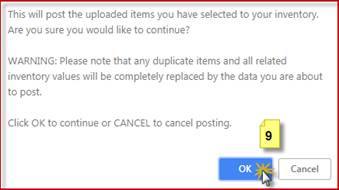
Confirmation dialog box for uploading items in eZCom Lingo software, warning about overwriting existing inventory values, with "OK" and "Cancel" options visible.

Next, you should receive a notice stating that your items were loaded successfully.
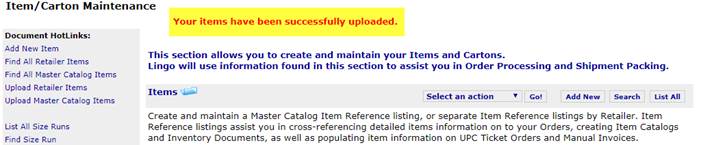
Item upload confirmation message in eZCom Lingo software, highlighting successful upload status and options for item maintenance and catalog management.