
Purchase Orders or Order Changes with the same order number that are being shipped to different locations are combined into a single Order Group. Here’s how to work with one.
Start in System Settings.
To see an Order Group, you’ll need to start by enabling the feature in System Settings by doing the following:
1. Hover over Administration in the blue navigation bar in Lingo.
2. Click System Settings in the drop down menu.
3. In General Settings, click Allow display of Order Groups from Inbox.
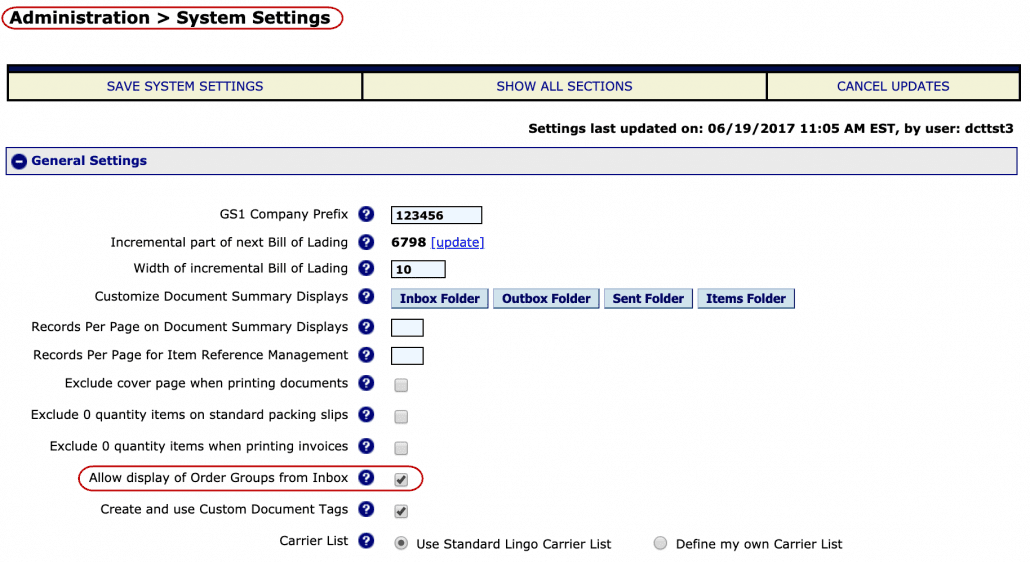
4. Save this setting by clicking on the Save System Settings button at the top of the page.
5. The message System Settings saved successfully should appear at the top of the screen.

Find an Order Group icon.
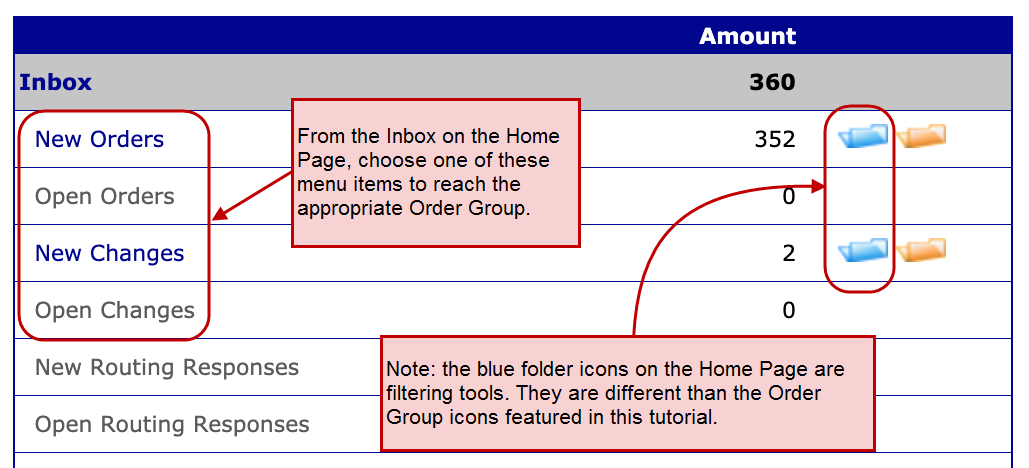
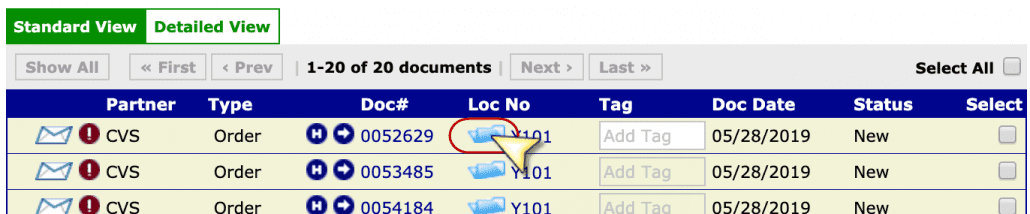
Once this feature is enabled from your Document Summary screen, you will see a blue Order Group folder icon next to each Document Number. Note that this is not the same as the blue folders that can be seen on the Home Screen.
View the Order Group display.
This feature is available for New Orders, Open Orders, New Changes and Open Changes. When you are on the Inbox summary screen of your choice, click on the blue Order Group folder icon.
Get the status of an Order Group.
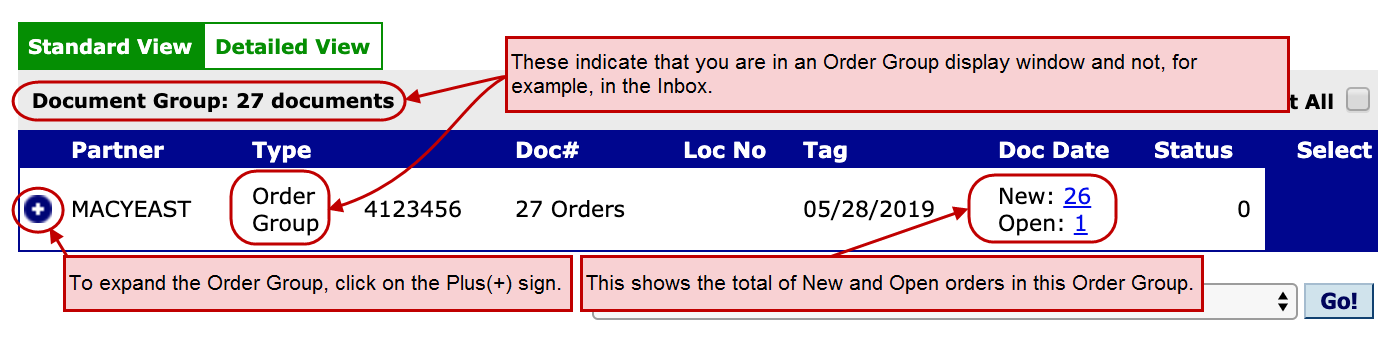
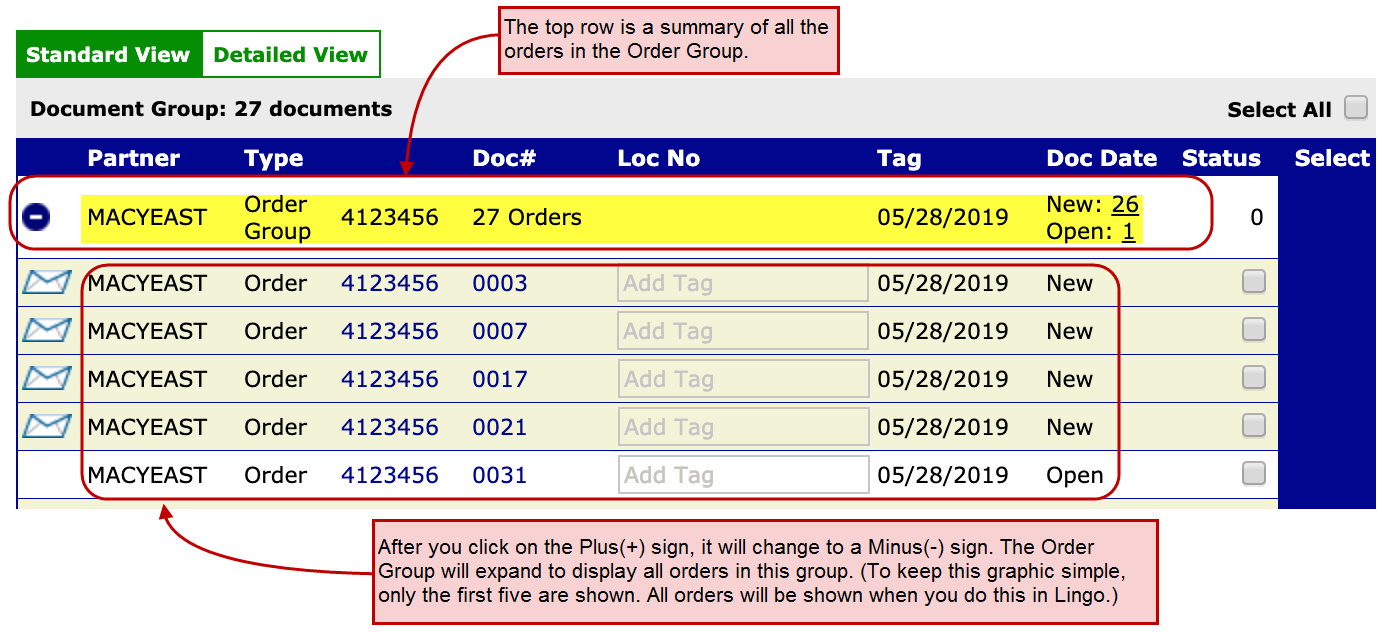
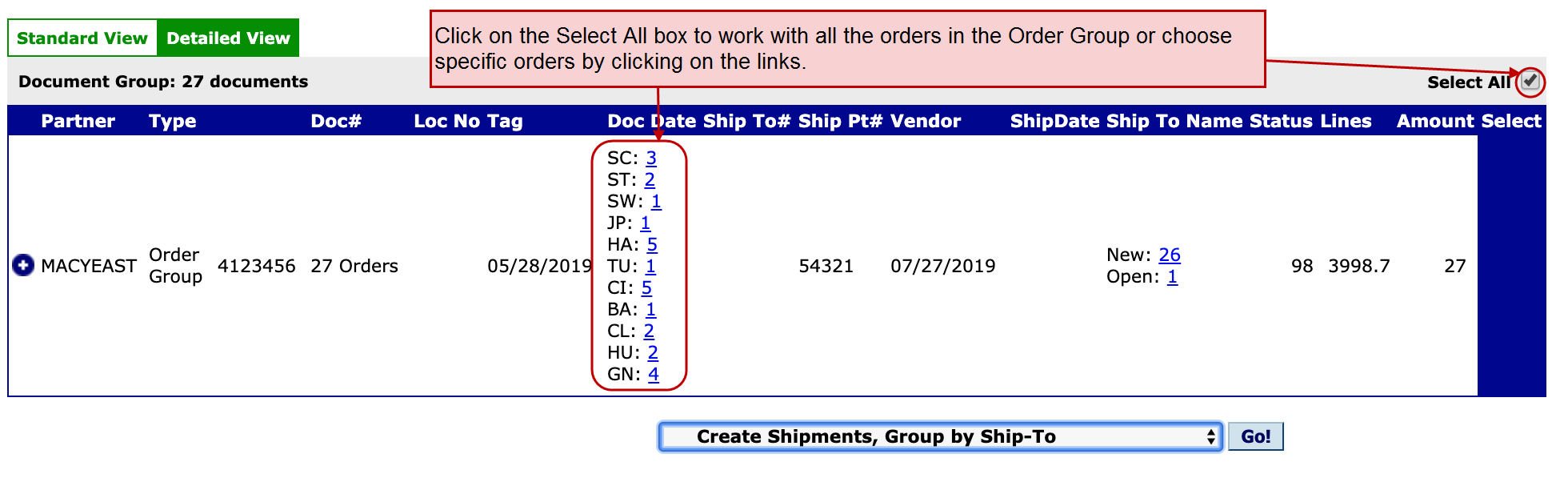
When you want to view the status of an Order Group, go to the Order Group window. In this example, we see Order Group information for Order Number 4123456. Under the Document Group heading, we can see there are 27 orders in this Order Group. Within the group, one order is Open and 26 orders are shown as New.
Expand the Order Group display.
Click on the Plus (+) sign in the blue circle to the left of the Order Group display—it will change to a Minus (-) sign once you do. All Orders that have the same number but are shipping to multiple locations will be visible.
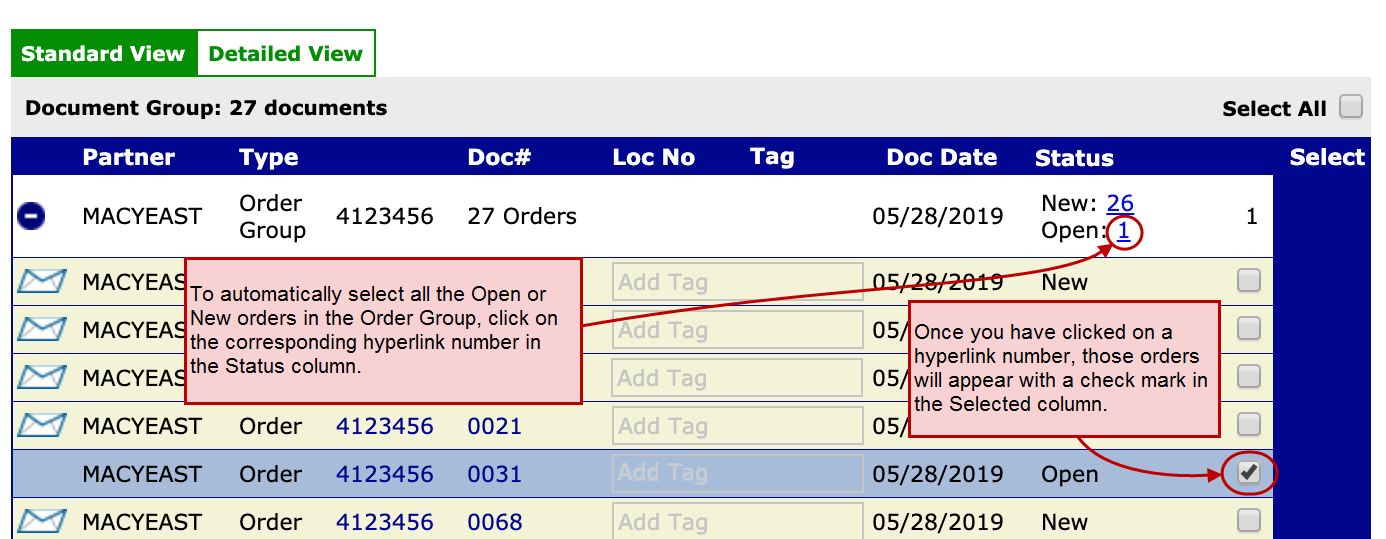
Automatically select orders within the Order Group.
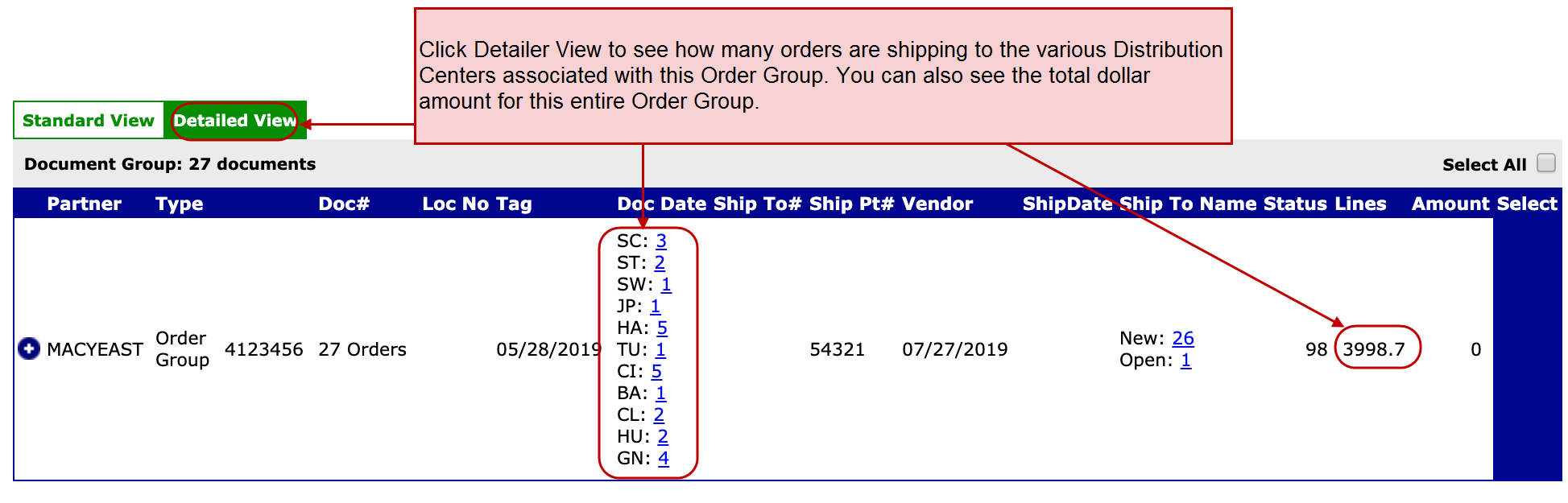
Review the Ship-To locations within an Order Group.
Not only can you see the status of orders within an Order Group, you can also check the Ship-To locations.
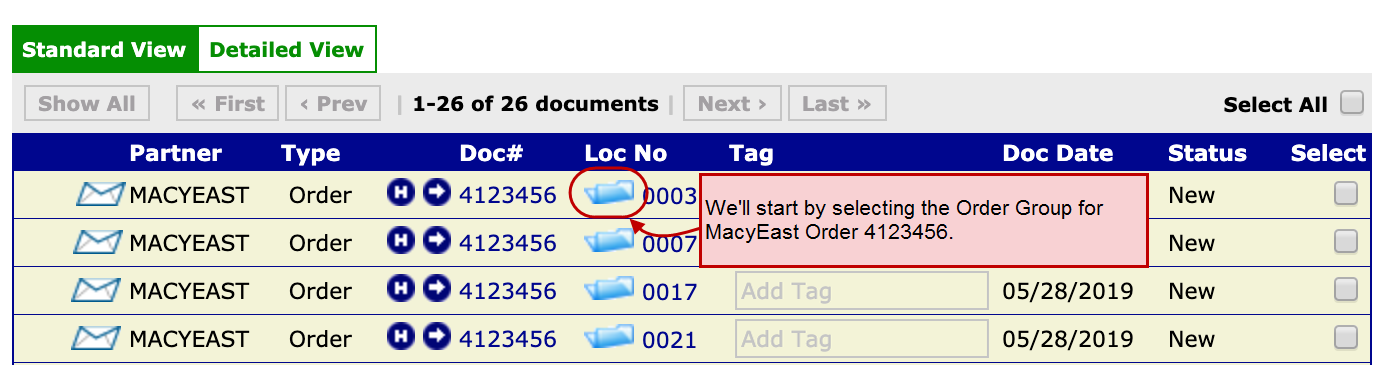
Start by selecting the Order Group you want to review. Then click Detailed View to review the Ship‐To locations of the orders within this Order Group.
Create a consolidated ASN.
Go to the Order Group display to begin creating shipments. You can select specific orders by clicking on the hyperlinks or click the Select All checkbox to work with all of the orders at the same time.
We hope this Working with Order Groups tutorial helps you get even more out of Lingo. If you have any questions, you can call the experts on our Support Team at 201-731-1800, Option 2, or reach us through the Help/Contact Us feature within your Lingo account.
