
With Lingo, you can create customized Item Reports from Purchase Orders or Invoices. Item totals will be based on criteria you select.
Creating the Item Report
1. Select the orders or invoices that you would like to include.
In this example, we show you how to select the orders from the Inbox. (Follow the same steps to run Item Reports for Invoices that are located in your Lingo Outbox or Lingo Sent folder.)
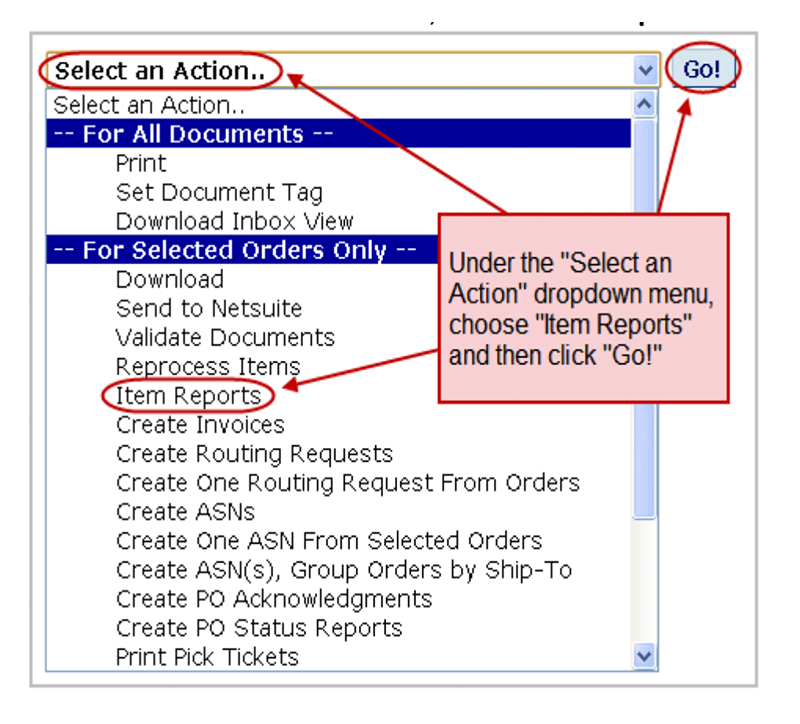
2. From the “Select an Action” menu, choose “Item Reports” and click “Go!”.
3 . Item Report Options
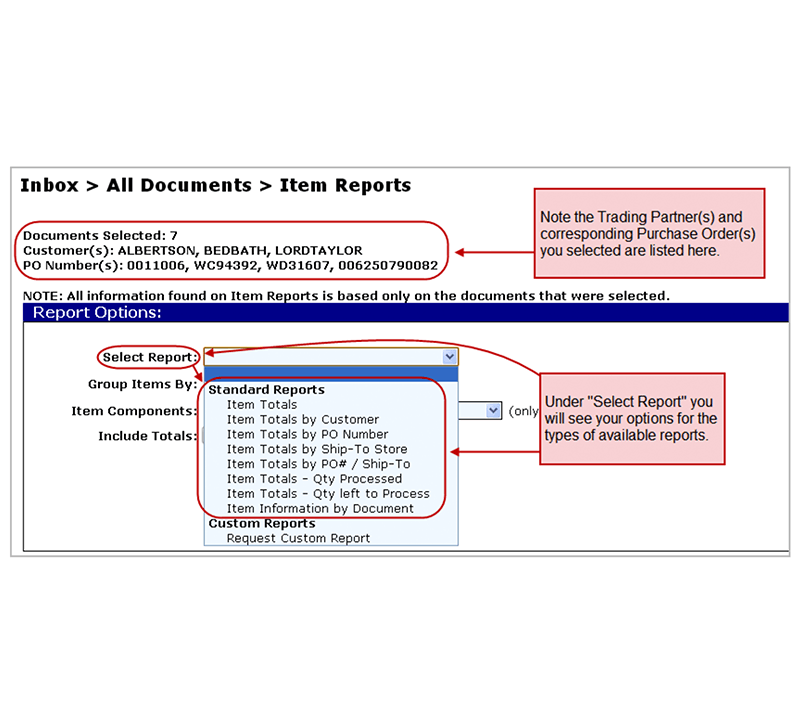
Item Report options available for Orders or Invoices:
- Item Totals: Select orders/invoices and this report will show the total quantities for all items.
- Item Totals by Customer: When orders/invoices from different customers are selected, this report will show the total quantities for each individual customer.
- Item Totals by PO Number: When multiple orders/invoices are selected, this report will show the total quantities for each one.
- Item Totals by Ship-To Store: When orders/invoices with multiple Ship-To locations are selected, this report will show the total quantities for each separate Ship-To location.
- Item Totals by PO# / Ship-To: When multiple orders/invoices with multiple PO numbers and more than one Ship-To location are selected, this report will show the total quantities for each separate combination of Purchase Order/Ship-To location.
- Item Information by Document: This option allows you to review line item information for all selected documents.
Item Report options for Orders:
- Item Totals – Qty Processed: For selected orders, this report will show the total item quantities that have been processed.
- Item Totals – Qty left to Process: For selected orders, this report will show the total item quantities still available to be processed.
Item Report options for Invoices:
- Item Totals by Invoice Number: When multiple invoices are selected, this report will show the total quantities for each invoice number.
- Item Totals by Invoice Date: When multiple invoices are selected, this report will show the total quantities for each invoice date.
- Item Totals by Customer / Invoice Date: When Invoices from different customers are selected, this report will show the total quantities for each individual customer with Invoice dates.
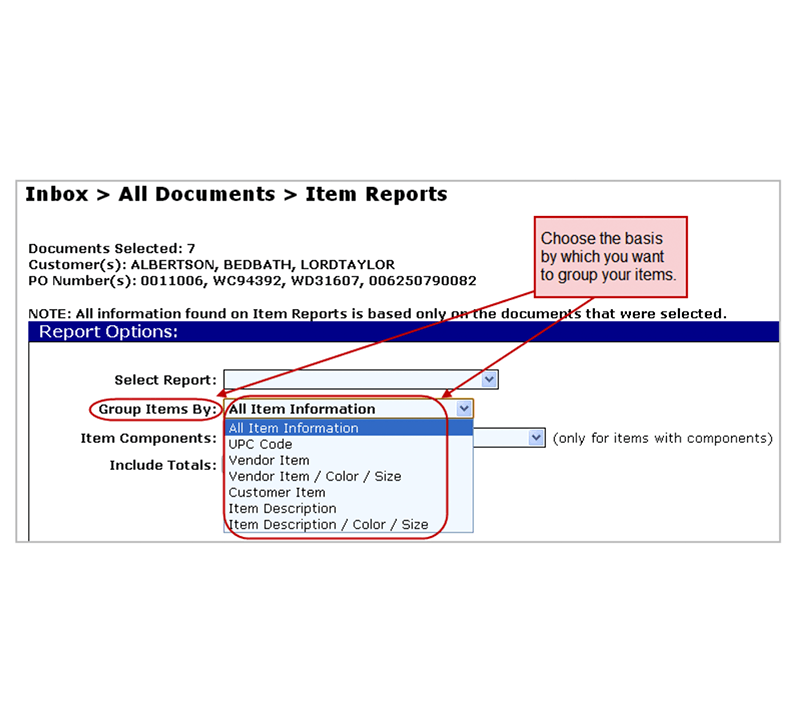
4. Choose the way you want to group your items.
5. Item Components
If your orders have a breakdown of components (or sub-line items), you will select which item information you wish to be displayed for those orders.
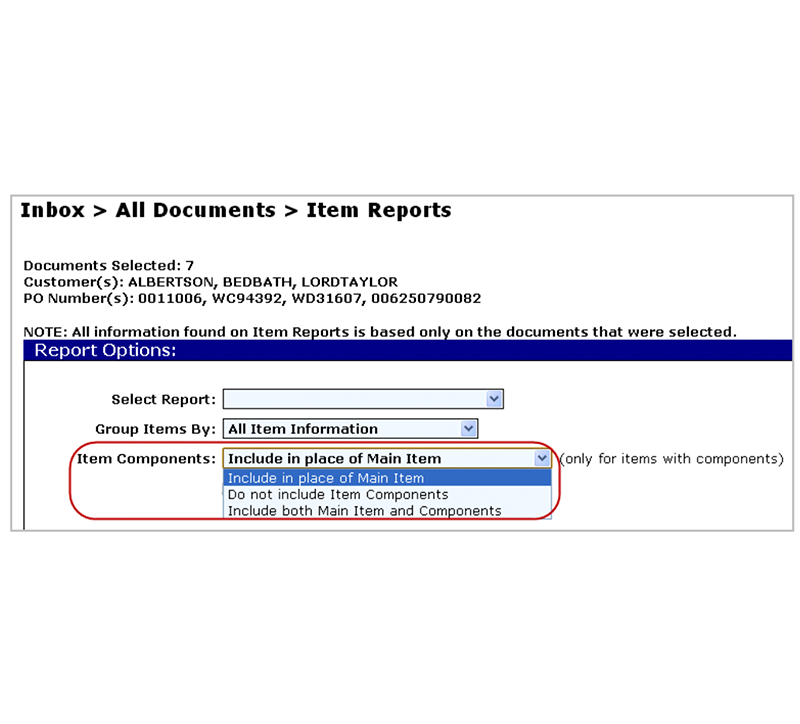
6. Run the Item Report
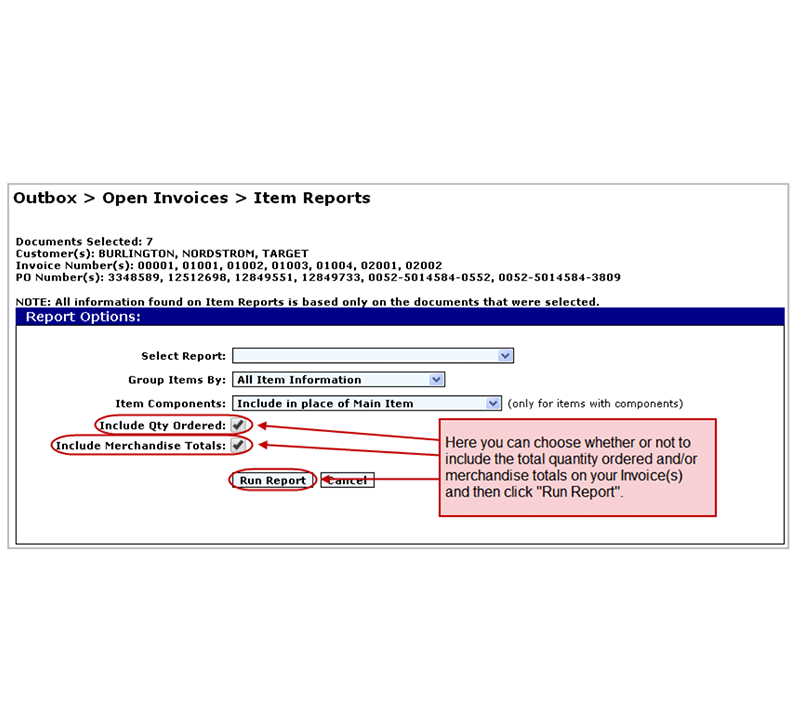
Once you have selected your options, click on “Run Report”.
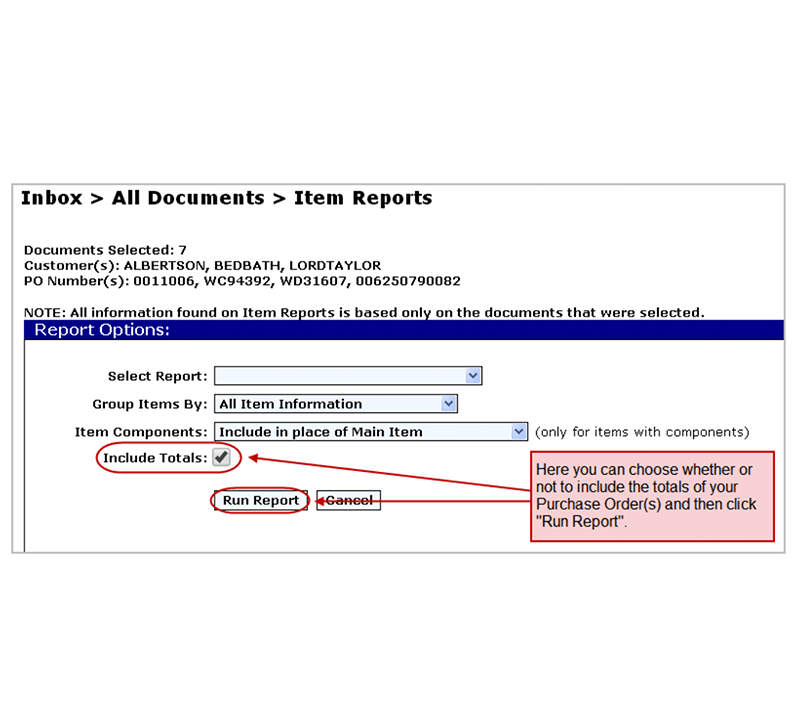
The Totals option is available for Invoices.
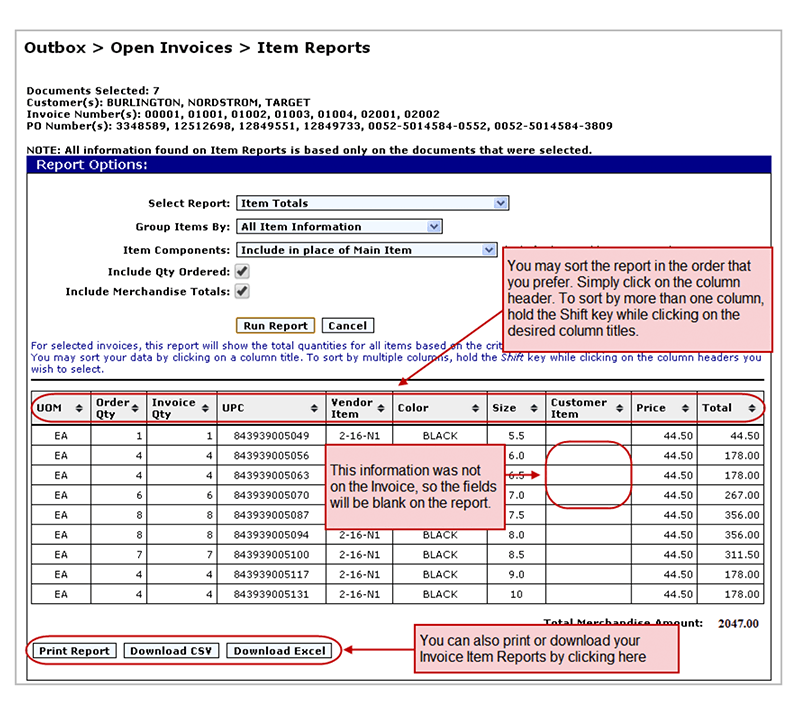
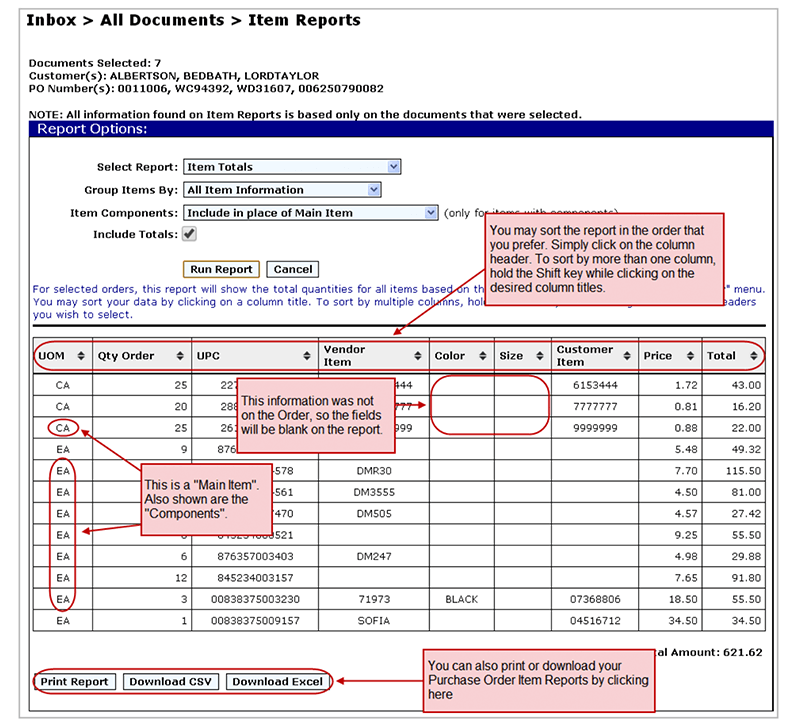
Sample Purchase Order Report
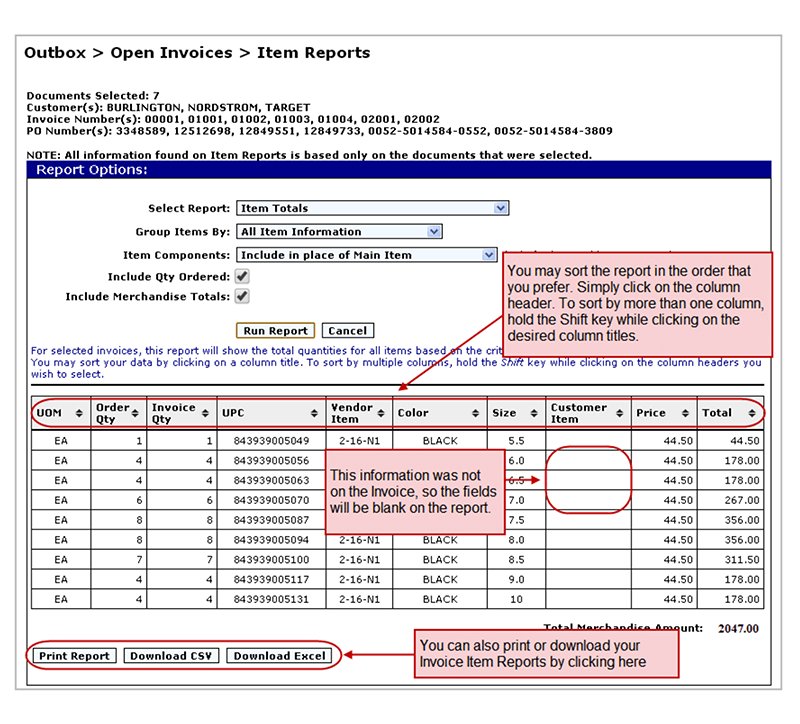
You may also sort your data by clicking on a column title. To sort by multiple columns, hold the Shift key while clicking on the column headers you wish to select. Note that while the Price and Total Order amount are present for each option, warehouse users will not be able to see this information.
Sample Invoice Report
This concludes the Item Reports tutorial. If you have any questions about Reports, please contact the support team at (877) 765-3564 (Option #2).

