
In Lingo, you can create custom “Tags” for all kinds of documents—Purchase Orders, ASNs, Invoices, Change Orders, and more.
Tags make search easier and help you communicate with the other people in your organization who process orders. Documents can be tagged at any time, whether the status is New, Open, On Hold, Released, Sent, or Transmitted.
ACTIVATING THE DOCUMENT TAG FEATURE
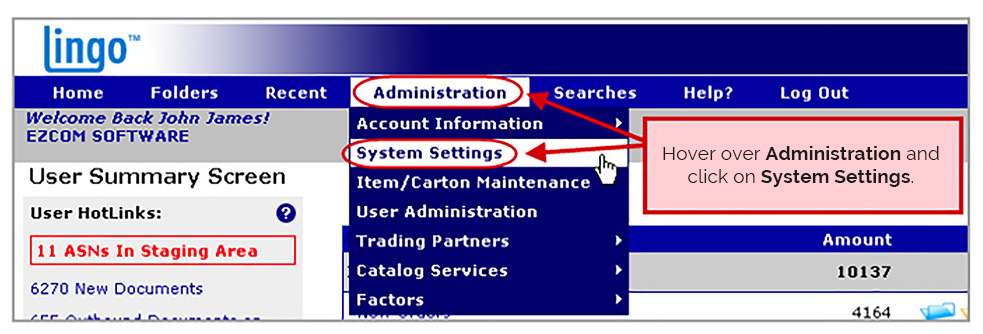
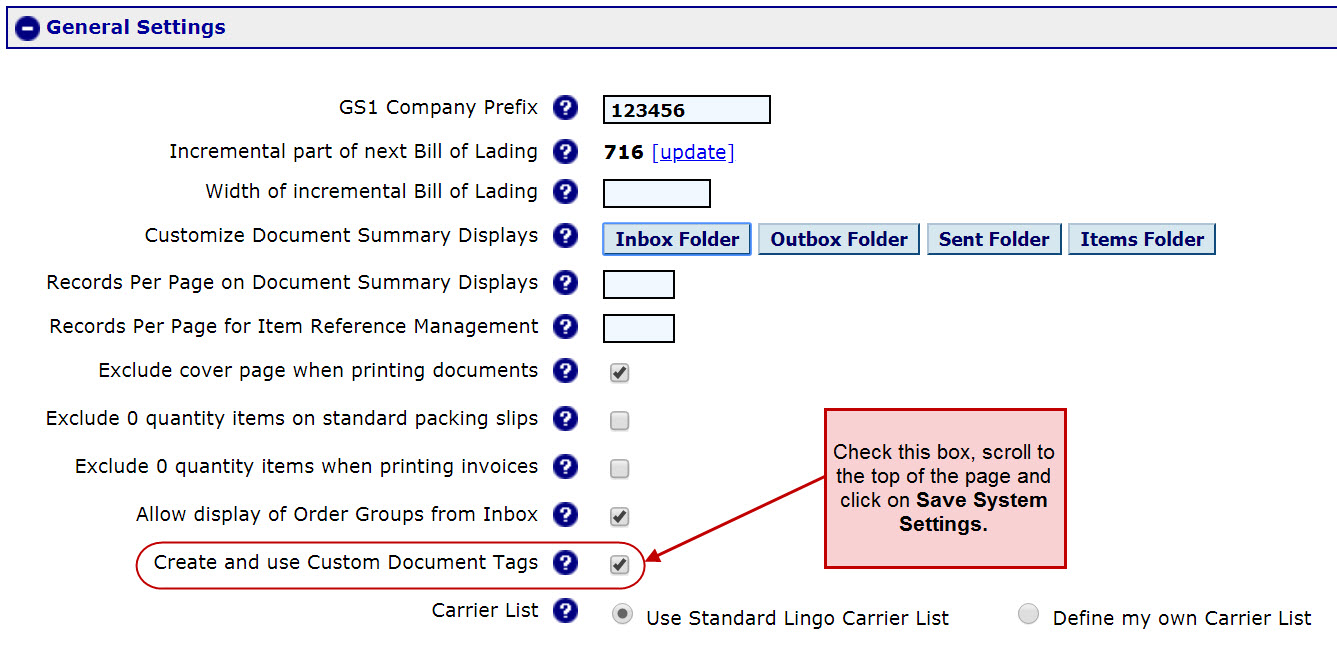
Under General Settings, check the box next to Create and use Custom Document Tags. Then scroll to the bottom of the page and click Save.
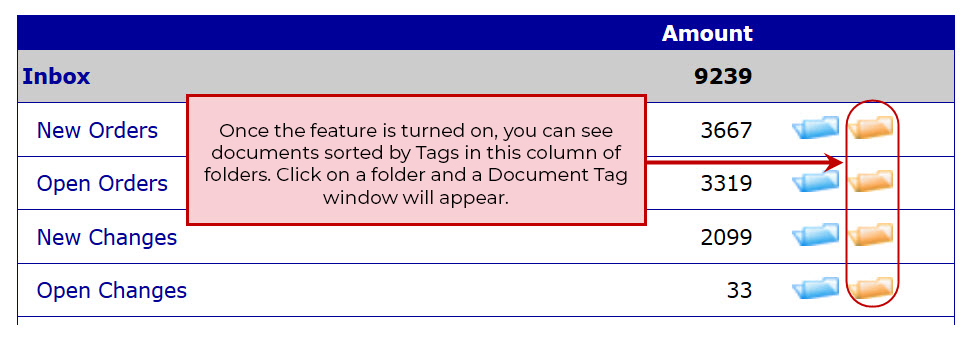
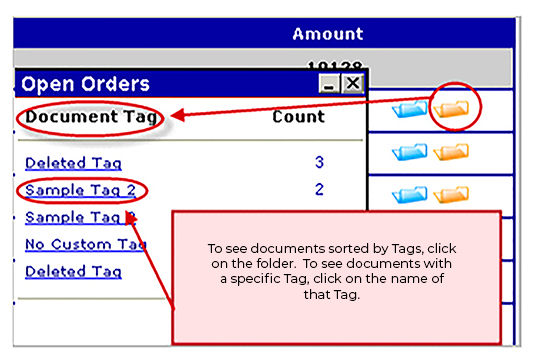
Once the Document Tag feature is activated, you will see a new column of folders on your Lingo home screen. It’s the column on the far right. To see documents with Tags, click on a folder in this column. A Document Tag window will appear. To see the documents related to a specific Tag, click on the Tag name that appears.
CREATING DOCUMENT TAGS
To create a Tag, go to the document in Lingo and click on Add Tag. A pop-up screen will appear.

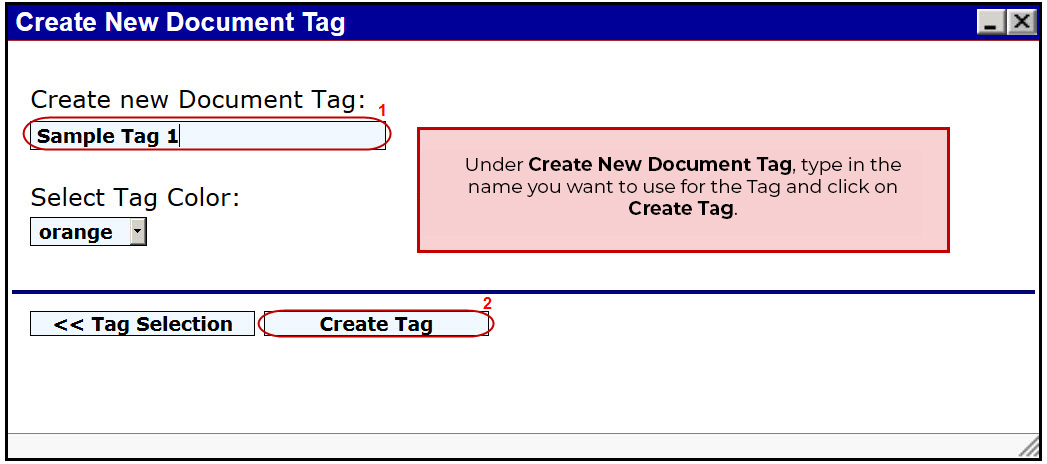
To create a new custom Tag, enter the name for the Tag in the Create New Document Tag field.
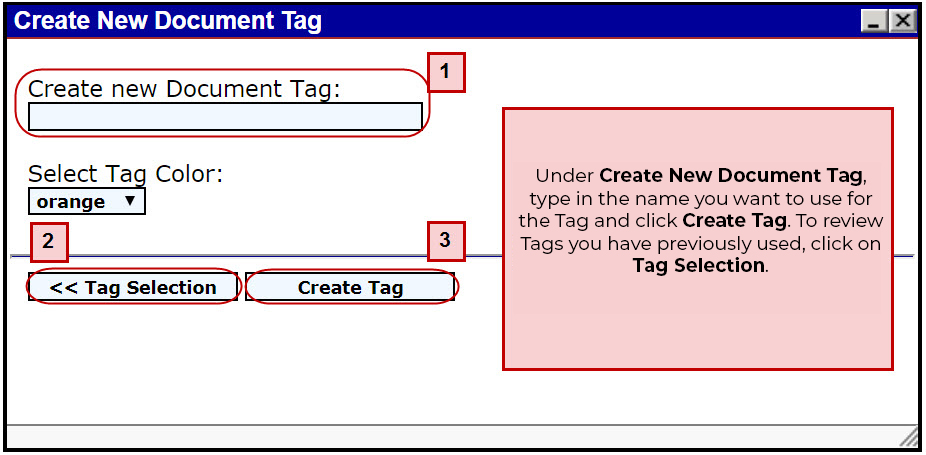
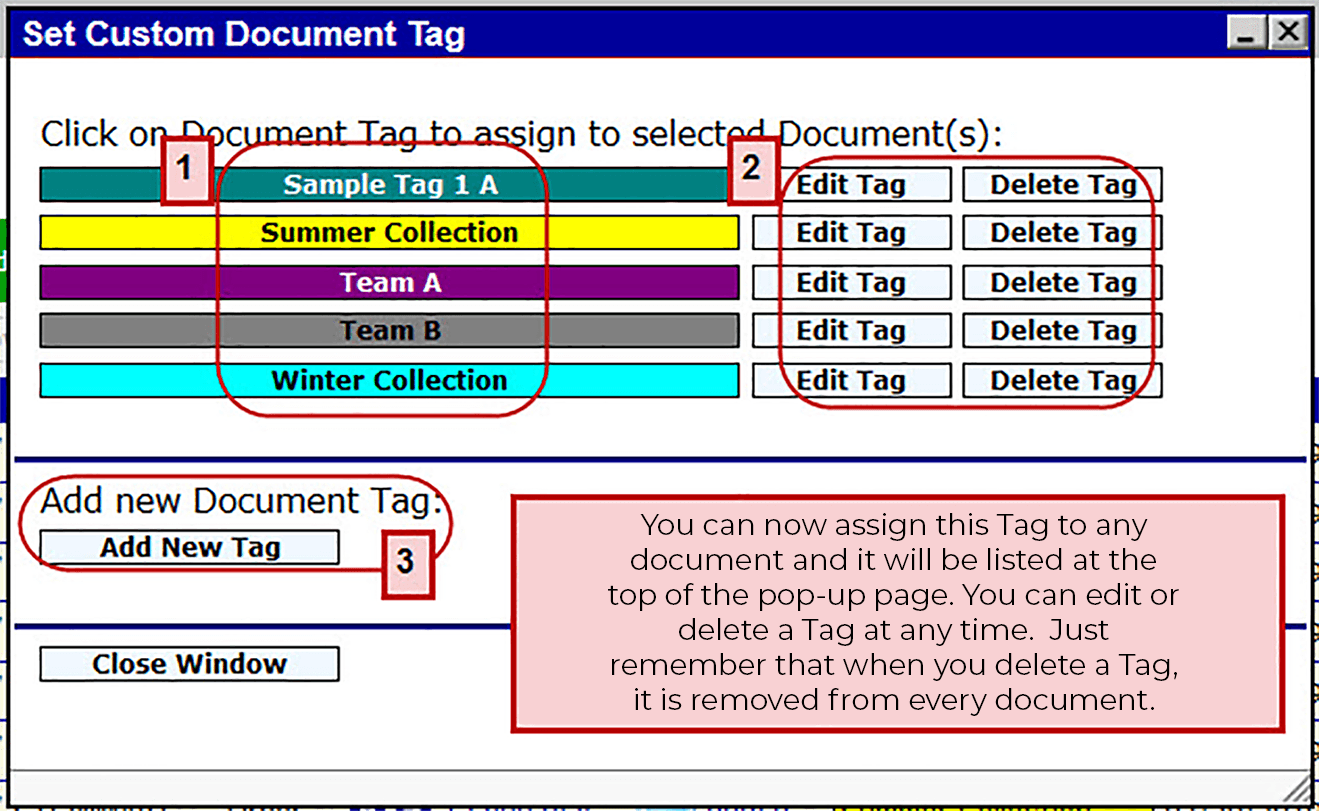
To use an existing Tag that you have previously created, click on Tag Selection—you’ll see it just below the Create New Document Tag field. A list of Tags that are currently available will appear—choose or edit one from this list. You can also delete a Tag—just remember that when you remove a Tag from this list, all the documents that were associated with the Tag you’re removing will now show Deleted Tag.
ASSIGNING TAGS TO MULTIPLE DOCUMENTS
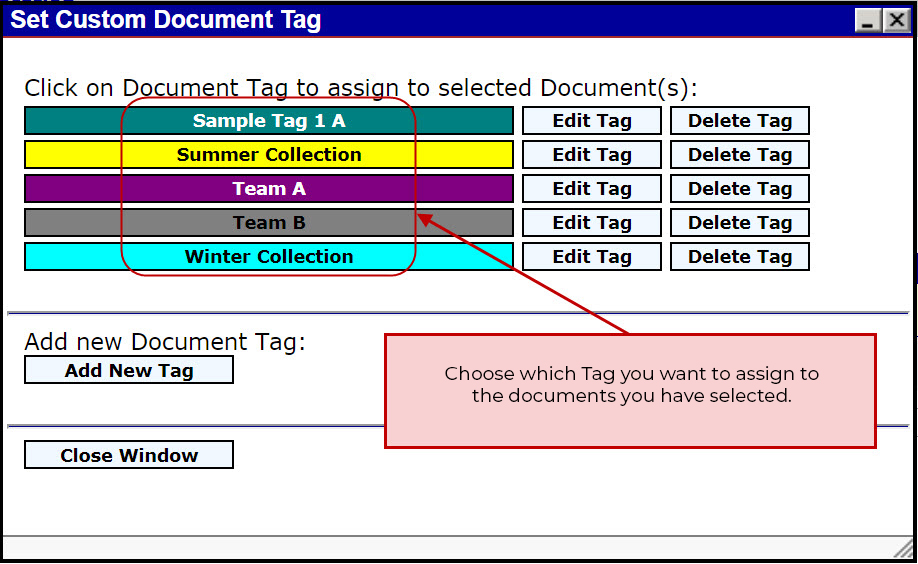
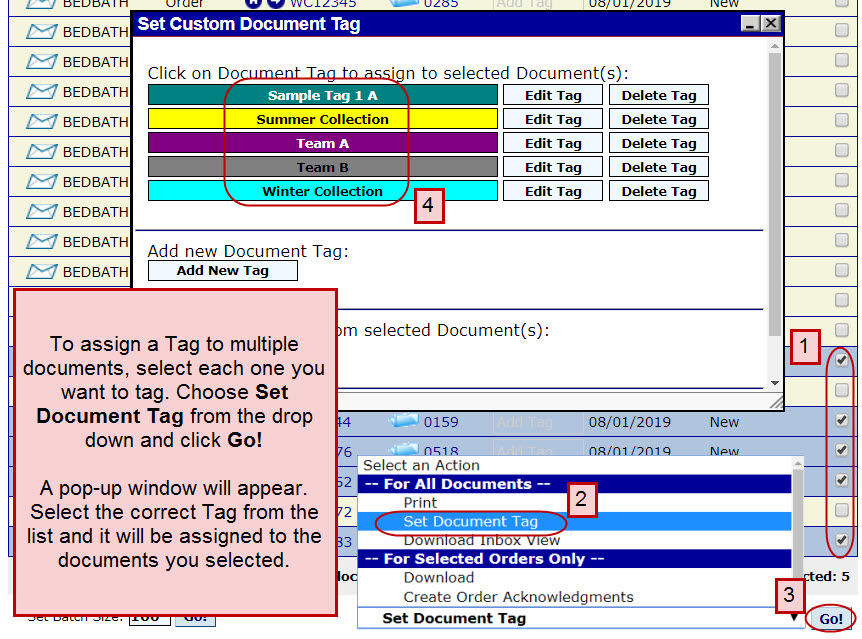
To save time, assign Tags to multiple documents at the same time. First, select all the documents you want to tag by checking the boxes that appear next to each one. Next, choose Set Document Tag from the drop down menu and click on GO! A pop-up window will appear—click on a Tag and it will be assigned to all the documents you have selected.
Tags can also be automatically assigned to specific documents, like Shipments (ASNs) and Invoices. To learn more about this feature, contact our experts in Customer Support.
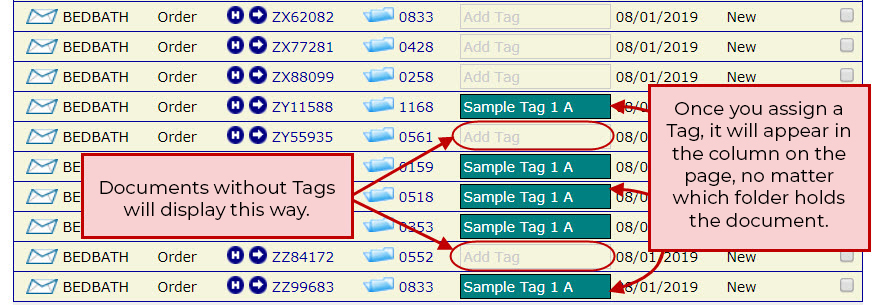
EXAMPLE ONE: Tag Purchase Orders
When a Purchase Order comes in, you can tag it with a specific ship date. When you do, your warehouse, 3PL partner, or the people in charge of shipping goods at your company know exactly when an order needs to go out. That means they can schedule everything else—routing authorization, the shipping company pickup, necessary paperwork—whatever needs to happen to make sure the order goes out on the date that is in your Tag.
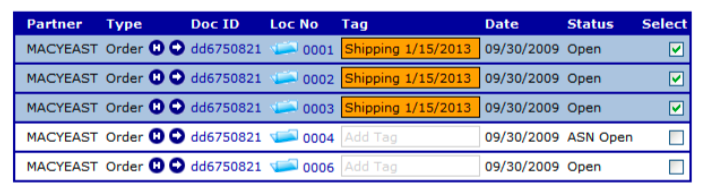
EXAMPLE TWO: Tag ASNs
Your warehouse has packed the order and informs you that it’s ready. You create the ASN but you want to let someone else in your organization know that the GS1-128 labels can be printed. You’ll also want to know when the labels are affixed and the shipment can be sent. You can add Tags like “Packed” or “ASN Completed” or “GS1-128 Labels Printer” to make the process clear and allow everyone to quickly see the current status of an order.
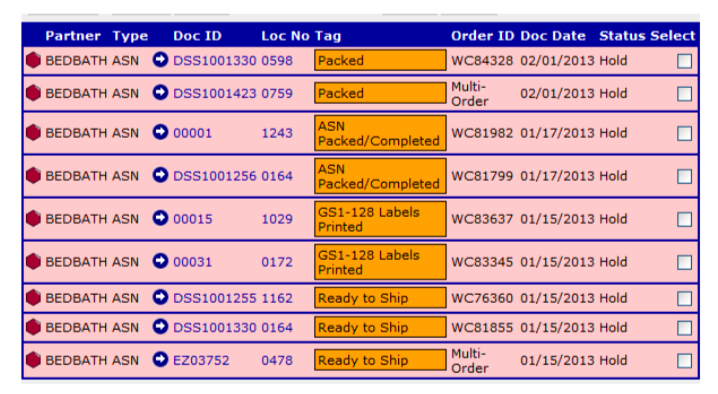
EXAMPLE THREE: Tag Invoices
To speed the reconciliation process, use tags with invoices. You can use a Tag that says, “Ready to Invoice” to let the accounting department know they can send the invoice for the order.
You can also tag invoices to reflect payment. Just add a Tag such as, “Paid on 10/30/19” to let everyone in your organization know that an invoice has been paid.

EXAMPLE FOUR: Tag a Partially Shipped Order
Another good time to utilize Tags is when a partial order has been shipped. To alert others that the shipment is not complete, use a Tag like “Back Ordered” to indicate that the ordered quantity was not shipped but will go out once it becomes available. If a specific item was not included in the shipment, use a Tag like “Backordered Item RF-542-LG” to reflect that.

These are just some of the ways you can employ Tags to make order processing easier and more efficient. Try using Tags whenever you work in Lingo—we’re confident you’ll find them extremely valuable. If you have any questions, please call our Customer Support Team at 201-731-1800, Option 2. We’ll be happy to help you with Tags or any other EDI and order processing issues.

